Running Floor796 in kiosk mode on a Raspberry Pi
How I turned a Raspberry Pi 4 and the official touchscreen into a display that wanders around Floor796 all day, with a watchdog for when it gets lost.

Floor796 is an animated scene showing the lives of characters from various works on the 796th floor of a huge space station. The animation is regularly expanded with new blocks (rooms) and characters from movies, TV series, games, anime, memes, etc.
For the longest time I wanted to pay tribute to the project by having it run on a permanent loop on my Raspberry Pi, and managed to get so far on my own a couple of years ago, but kept getting stuck with a bug in wandering mode (see below), so it went in a drawer.
Thankfully, with Claude’s help, we’ve discovered the source of the bug (I’ve submitted a bug report to the author for a potential fix) and have documented a workaround below. So let’s get stuck in.
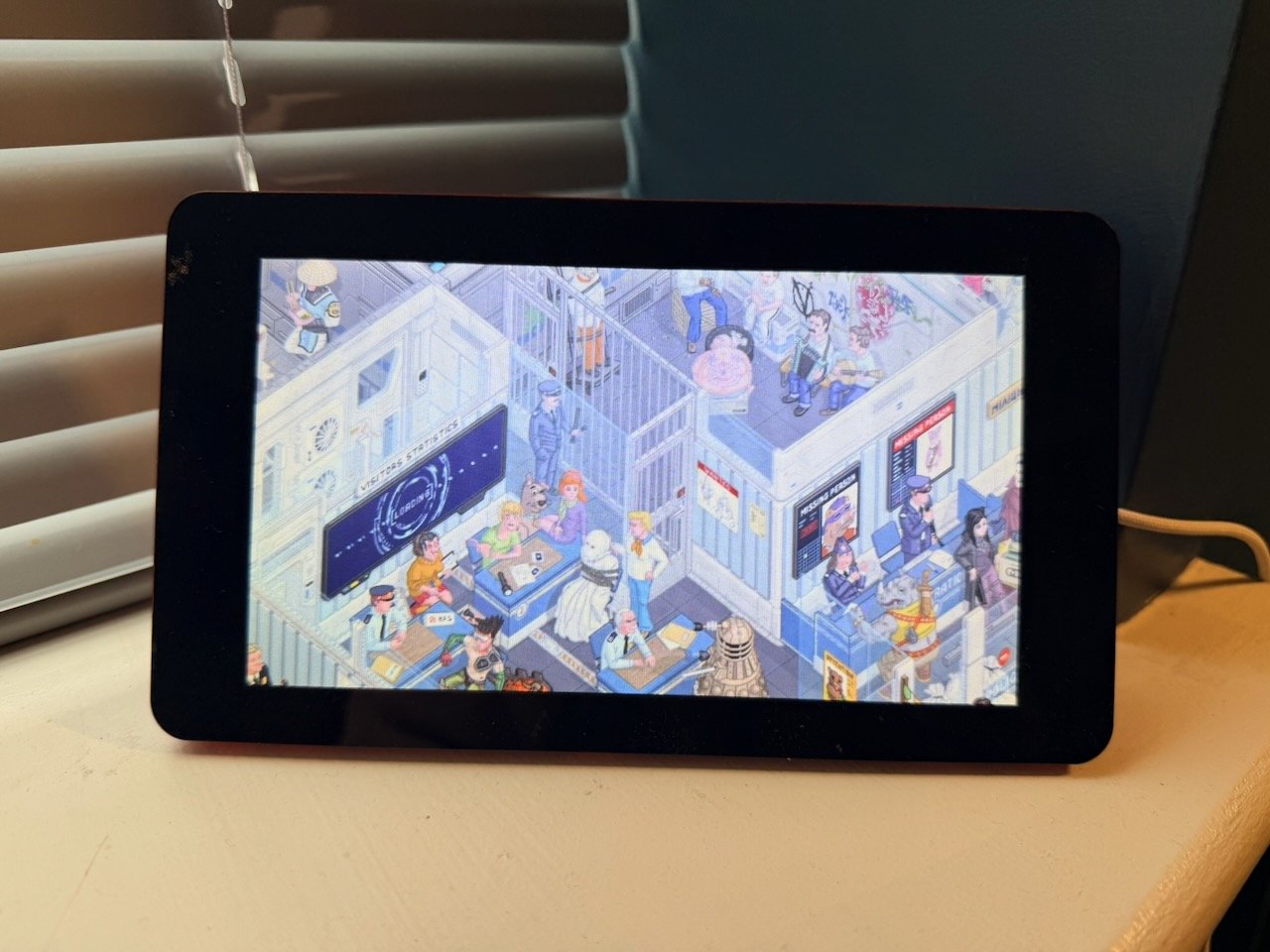 The finished kiosk, wandering around Floor796 on my windowsill
What you need
- Raspberry Pi 4 Model B (I used the 4GB one; 2GB should be fine)
- Official Raspberry Pi 7” touchscreen (800x480), connected over the DSI ribbon
- Raspberry Pi OS with the desktop, already installed and on the network. I’m on Debian 13 (trixie) with the labwc desktop, which is the default on current releases.
- SSH access, or a keyboard plugged in for setup
Every command runs as your normal desktop user (mine is daniel). Swap in your own username wherever paths mention /home/daniel or user ID 1000.
1. Prepare the Pi
The Pi must log straight into the desktop with no password prompt, and the screen must never blank.
Turn on desktop autologin:
1
sudo raspi-config nonint do_boot_behaviour B4
Turn off screen blanking:
1
sudo raspi-config nonint do_blanking 1- If the screen is upside down in its case, open Preferences → Screen Configuration, right-click DSI-1, set Orientation → Inverted, then Apply. The desktop remembers it across reboots.
Install
grim, the screenshot tool the watchdog uses. It’s often there already, in which case this does nothing:1
sudo apt install -y grim
- Reboot with
sudo rebootand check that the desktop appears without a login screen.
2. Create the kiosk launch script
One script starts the browser. Boot, the watchdog and the scheduled restart all use it, so the browser options live in one place. If Chromium is already running, the script closes it first, so it also works as a restart.
Create ~/kiosk.sh:
1
2
3
4
5
6
7
8
9
#!/bin/sh
# Restart Floor796 kiosk (used by labwc autostart and cron)
export WAYLAND_DISPLAY=wayland-0 XDG_RUNTIME_DIR=/run/user/1000 XCURSOR_THEME=blank XCURSOR_SIZE=24
pkill -f /usr/lib/chromium/chromium && sleep 3
exec chromium --kiosk --ozone-platform=wayland --window-size=800,480 --force-device-scale-factor=1 \
  --password-store=basic --noerrdialogs --disable-infobars --no-first-run --hide-scrollbars \
  --disable-pinch --disable-session-crashed-bubble \
  --disable-features=WebAssemblyTrapHandler \
  "https://floor796.com/#wandering"
Make it executable with chmod +x ~/kiosk.sh.
What each part does:
#wanderingat the end of the URL: Floor796 starts Wandering mode by itself when the page opens with this.WAYLAND_DISPLAY,XDG_RUNTIME_DIR: Let the script open the browser on the screen even when cron runs it.1000is your user ID; check it withid -u.XCURSOR_THEME=blank: Uses the invisible cursor from step 4.--kiosk: Full screen, no tabs, no address bar.--ozone-platform=wayland: Run natively on the labwc desktop.--window-size=800,480,--force-device-scale-factor=1: Match the 7” screen. Keep scaling at 1: on a small screen with scaling above 1, Floor796 treats the Pi as a phone and won’t start Wandering automatically.--disable-pinch: Stops pinch-zoom from changing the view.--disable-features=WebAssemblyTrapHandler: Stops scenes failing to load after a while. Chromium normally reserves 10–16GB of address space for each WebAssembly memory, and the Pi 4 kernel allows 512GB per process. Once enough scenes are loaded, new ones fail with “Out of memory: Cannot allocate Wasm memory” even though RAM is free. This flag makes Chromium check bounds in code instead.--noerrdialogs,--disable-session-crashed-bubble,--disable-infobars: No popups over the display, including “Restore pages?” after a restart.--password-store=basic: Skips the keyring password prompt at startup.--no-first-run,--hide-scrollbars: No welcome page and no scrollbars.
3. Start the kiosk at boot
The labwc desktop runs ~/.config/labwc/autostart each time you log in, and autologin means every boot. Create or edit that file:
1
2
3
4
5
# Keep the screen on
wlr-randr --output DSI-1 --on

# Launch Chromium after a short delay to let the network come up
(sleep 8 && ~/kiosk.sh) &
The 8-second delay gives Wi-Fi time to connect, so the page doesn’t open to an error. Reboot, and Floor796 should appear and start wandering within about 20 seconds.
To start it again without rebooting (from SSH, for example), run ~/kiosk.sh &.
4. Hide the cursor
The cursor is hidden with an invisible cursor theme: one transparent pixel, used for every pointer shape. labwc can hide the cursor itself, but only from a key binding, so there’s no simple way to trigger it at boot. unclutter doesn’t work on Wayland.
Create the theme:
1
2
3
4
5
6
7
8
9
10
mkdir -p ~/.icons/blank/cursors && cd ~/.icons/blank/cursors
python3 -c '
import struct
# Xcursor file: one 1x1 fully transparent image at nominal size 24
img = struct.pack("<9I", 36, 0xfffd0002, 24, 1, 1, 1, 0, 0, 0) + struct.pack("<I", 0)
hdr = b"Xcur" + struct.pack("<3I", 16, 0x10000, 1) + struct.pack("<3I", 0xfffd0002, 24, 28)
open("default", "wb").write(hdr + img)
'
for n in $(ls /usr/share/icons/Adwaita/cursors); do [ "$n" = default ] || ln -sf default "$n"; done
printf "[Icon Theme]\nName=blank\n" > ../index.theme
Turn it on for the desktop by adding these two lines to ~/.config/labwc/environment. kiosk.sh already sets the same theme for Chromium.
1
2
XCURSOR_THEME=blank
XCURSOR_SIZE=24
Reboot for it to take effect. The pointer stays invisible even with a mouse plugged in. To bring it back, delete the XCURSOR_THEME line from both files and reboot.
5. Fix Wandering getting lost
Every 30 to 90 minutes, Wandering loses track of the camera and the screen goes blank until the page restarts. The fix is a watchdog that spots the blank screen and restarts the browser.
Why it happens
Wandering moves the camera between random points on the edge of a scene. Sometimes the next point it picks is the spot the camera is already on. The distance to move is then 0, and each step divides by that distance:
1
2
this._fromXY.x + (this._toXY.x - this._fromXY.x) / this._moveDelta * this._value
//                      0                       /       0         = NaN
The camera position becomes NaN (“not a number”). Every later move starts from NaN, so the move never finishes and nothing is drawn. All 12 blanks I caught in one night had the same start and destination and a distance of 0.
The bug is in Floor796’s own code, not the Pi, so it can’t be fixed from here. Until the site fixes it, the watchdog below covers it. Each blank costs about 30 seconds of empty screen.
The watchdog
The watchdog runs in a loop and takes a small screenshot every 10 seconds. A blank screen saves as a tiny file, under 5KB. Real scenes are 70KB or more, even when half the view is off the map. Three blank checks in a row trigger a restart, so the screen goes back to Floor796 about 30 seconds after it blanks, plus page load. After each restart the watchdog waits 60 seconds, because the “Loading…” page is nearly blank too.
Create ~/kiosk-watchdog.sh:
1
2
3
4
5
6
7
8
9
10
11
12
13
14
15
16
#!/bin/sh
# Restart kiosk when screen stays blank (Floor796 wander stuck off-map). Runs forever from labwc autostart.
# Blank = screenshot PNG under 5KB; real scenes are 70KB+, even half off-map
export WAYLAND_DISPLAY=wayland-0 XDG_RUNTIME_DIR=/run/user/1000
blank=0
while :; do
  sleep 10
  grim -s 0.5 /tmp/kiosk-check.png 2>/dev/null || continue
  if [ "$(stat -c %s /tmp/kiosk-check.png)" -lt 5000 ]; then blank=$((blank + 1)); else blank=0; fi
  if [ $blank -ge 3 ]; then
    logger -t kiosk-watchdog "blank screen, restarting kiosk"
    setsid $HOME/kiosk.sh >/dev/null 2>&1 < /dev/null &
    blank=0
    sleep 60  # let the page load before checking again
  fi
done
Make it executable with chmod +x ~/kiosk-watchdog.sh.
Start it at login
Add these lines to the end of ~/.config/labwc/autostart. The 60-second delay lets the kiosk load first after boot.
1
2
# Restart the kiosk if the screen goes blank
(sleep 60 && ~/kiosk-watchdog.sh) &
As a backup, also restart the browser every 6 hours, which clears any slow memory build-up. Run crontab -e and add:
1
0 */6 * * * $HOME/kiosk.sh >/dev/null 2>&1
To check it’s running, use pgrep -fa kiosk-watchdog, or run ls -l /tmp/kiosk-check.png and look for a screenshot from the last 10 seconds. Each restart it triggers is logged, and journalctl -t kiosk-watchdog lists them. To start it without rebooting, run setsid ~/kiosk-watchdog.sh >/dev/null 2>&1 < /dev/null &.
6. Touchscreen (optional)
The kiosk doesn’t need touch. Wandering runs by itself, and any touch or mouse drag pauses it for 3 seconds before it carries on from wherever the view ended up. Set touch up only if you want people to explore the station by hand.
Name the display in the boot config. In
/boot/firmware/config.txt, replacedisplay_auto_detect=1with:1
dtoverlay=vc4-kms-dsi-7inch
Back up the file first (
sudo cp /boot/firmware/config.txt /boot/firmware/config.txt.bak), then reboot.Link touch to the screen in
~/.config/labwc/rc.xml, so taps land on the right display and follow its rotation:1 2 3
<labwc_config> <touch deviceName="10-0038 generic ft5x06 (79)" mapToOutput="DSI-1" /> </labwc_config>
Get the exact device name from
libinput list-devices.Test it. Run this, then tap the screen:
1
libinput debug-events --device /dev/input/by-path/platform-fe205000.i2c-event
Each tap should print
TOUCH_DOWNandTOUCH_UPlines. If nothing prints, the problem is hardware. Power off, then reseat the thin ribbon from the glass to the adapter board on the back of the display, and the main DSI ribbon at both ends.
Try mapToOutput alone before adding a rotation (calibrationMatrix) for an inverted screen. labwc normally rotates touch along with the display it’s linked to, so adding your own rotation can make taps land on the opposite side. I haven’t confirmed this on a working panel yet.
7. Dim and turn off the screen at night
The screen runs at full brightness from 06:00 to 20:00, dims from 20:00 to 22:00, and turns off from 22:00 to 06:00. This saves energy, because the backlight uses most of the screen’s power. Chromium keeps running overnight, so the watchdog doesn’t see a problem.
The official display’s backlight is /sys/class/backlight/10-0045/brightness, from 0 (off) to 255 (full). Users in the video group can write to it without sudo. Run ls /sys/class/backlight/ to check the name on your Pi.
Create ~/backlight.sh:
1
2
3
4
5
6
7
8
#!/bin/sh
# Backlight schedule: full 06-20, dim 20-22, off 22-06. Run from cron every 5 min.
DIM=40  # 0-255, tune to taste
h=$(date +%H)
if [ "$h" -ge 22 ] || [ "$h" -lt 6 ]; then b=0
elif [ "$h" -ge 20 ]; then b=$DIM
else b=255; fi
echo $b > /sys/class/backlight/10-0045/brightness
Make it executable with chmod +x ~/backlight.sh. Then run crontab -e and add:
1
2
*/5 * * * * $HOME/backlight.sh
@reboot sleep 30 && $HOME/backlight.sh
The script works out the brightness from the hour every time it runs, so a reboot or power cut at night won’t leave the screen on. To change the times, edit the hours in the script. To change the dim level, edit DIM. The times follow the Pi’s time zone: check it with timedatectl.
8. Troubleshooting
Click a problem to see what to check and how to fix it.
Nothing appears after boot
Check: Is Chromium running? pgrep -c chromium
Fix: Check autologin (step 1) and that ~/.config/labwc/autostart calls ~/kiosk.sh.
Blank grey screen for a long time
Check: pgrep -fa kiosk-watchdog shows the watchdog running; journalctl -t kiosk-watchdog
Fix: Make ~/kiosk-watchdog.sh executable and check that grim is installed.
Page loads but doesn't wander
Check: Is #wandering at the end of the URL?
Fix: Keep --force-device-scale-factor=1. With scaling above 1, Floor796 treats the small screen as a phone and won’t start Wandering.
Many tiles stay empty after it's been running a while
Check: Add --enable-logging=stderr 2>~/chromium-console.log to the Chromium line, then grep -c "Cannot allocate Wasm memory" ~/chromium-console.log
Fix: Keep --disable-features=WebAssemblyTrapHandler in kiosk.sh. The older --js-flags=--no-wasm-trap-handler is ignored by current Chromium.
"Restore pages?" popup
Keep --disable-session-crashed-bubble in kiosk.sh.
Cursor still visible
Check: ls ~/.icons/blank/cursors shows about 60 files
Fix: Check XCURSOR_THEME=blank in both kiosk.sh and ~/.config/labwc/environment, then reboot.
An SSH session drops while restarting the kiosk
kiosk.sh closes any process whose command line contains /usr/lib/chromium/chromium. Don’t type that path in the same command that runs the script. Cron and autostart aren’t affected.
Undoing it all
To undo everything, delete the kiosk.sh line from ~/.config/labwc/autostart, delete the watchdog lines from the same file, remove the 6-hour line and the two backlight.sh lines from crontab -e, delete XCURSOR_THEME=blank from ~/.config/labwc/environment, then reboot. If you changed the boot config, copy your config.txt.bak back over it. If the screen stays black after a boot config change, edit config.txt on the SD card from another computer.
The header image is a screenshot of part of Floor796, and the artwork on the kiosk’s screen is Floor796 too.