WLED's own controls inside Home Assistant
Rather than rebuild WLED's effects and palettes in Home Assistant, I embedded WLED's own page, and fixed a lamp icon I couldn't read.
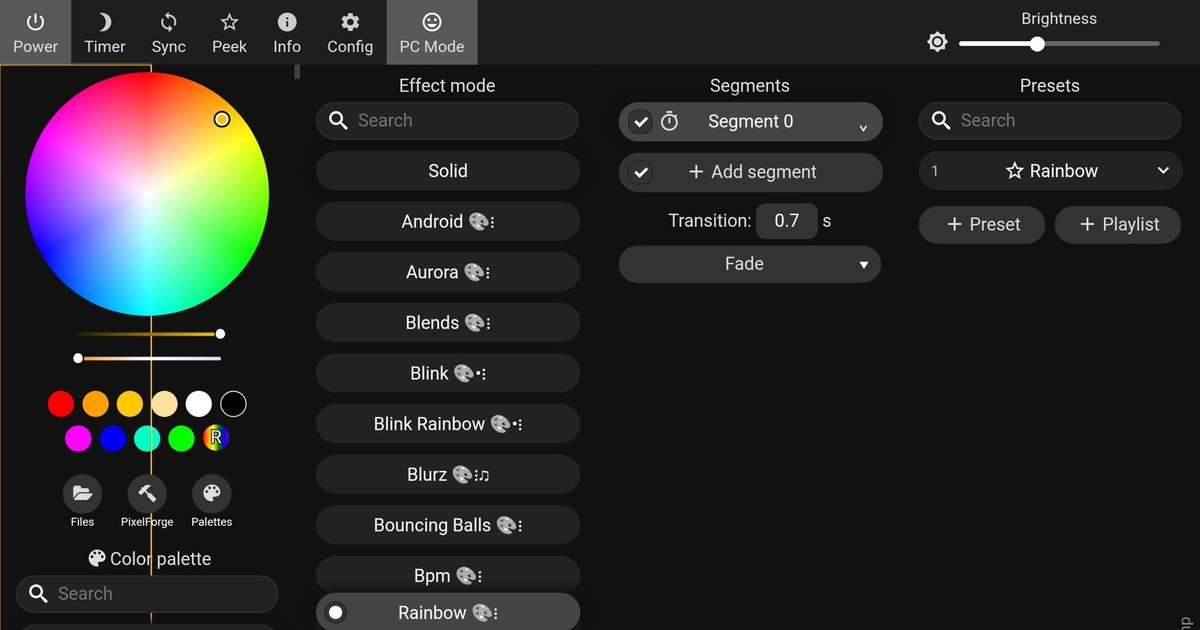
In my last post I moved my old RGB lamp over to WLED, and Home Assistant picked it up straight away. I gave it a button on my Office dashboard, next to my other lamps, and that’s where I hit two snags.
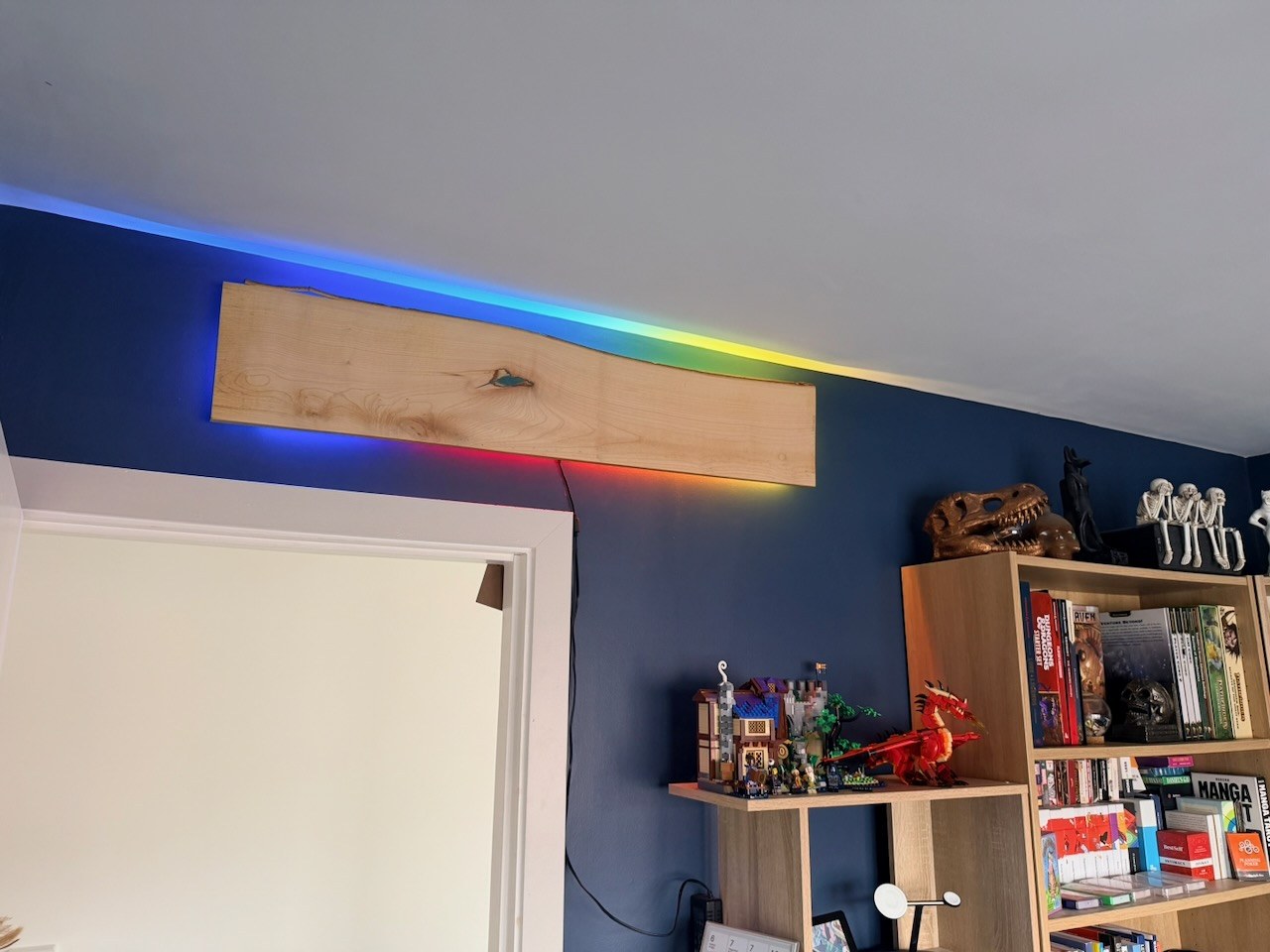 The lamp on my office wall, back in Rainbow mode
First, the button only turns the lamp on and off. Home Assistant’s light entity can pick effects too, but WLED’s own page has far more: the colour wheel, palettes, every effect’s sliders, presets and playlists. I didn’t want to rebuild all that out of Home Assistant cards.
Second, I couldn’t tell whether the lamp was on. My other lamps’ icons light up yellow, and this one’s looked red to me, and too dark to read.
Both turned out to have tidy fixes. As usual, Claude did a lot of the heavy lifting. So let’s get stuck in.
WLED’s page, one long-press away
Home Assistant’s Webpage card (type: iframe) shows any web page inside a dashboard, and WLED doesn’t stop itself being embedded. So the lamp’s page goes in a view of its own, and the button opens it on a long-press.
The view lives in its own file, dashboards/views/rgb-lamp.yaml, so both of my dashboards that have the lamp can !include it:
1
2
3
4
5
6
7
title: RGB lamp
path: rgb-lamp
subview: true
type: panel
cards:
- type: iframe
  url: http://rgb-lamp.local/
subview: true hides it from the tab bar and gives it a back arrow, and type: panel lets the one card fill the screen. Then the button gets a hold_action, so a tap still toggles the lamp:
1
2
3
4
5
6
7
8
9
10
- type: button
  entity: light.rgb_lamp
  name: RGB lamp
  icon: mdi:led-strip-variant
  show_state: false
  tap_action:
    action: toggle
  hold_action:
    action: navigate
    navigation_path: /dashboard-home/rgb-lamp
On my desktop dashboard, where there’s room, I went one better and made it a normal tab: the same view without subview: true, plus an icon.
Two catches
It only works at home. The lamp’s page is plain HTTP, and browsers won’t load an HTTP page inside an HTTPS one. So when I open Home Assistant through Nabu Casa while I’m out, the page stays blank. Then again, I can’t reach the lamp from outside anyway.
Use the name, not the IP. I started with the lamp’s IP address, assuming the Android tablet that runs my Office panel wouldn’t understand .local names. I was wrong: when we tested it, it loaded http://rgb-lamp.local/ fine. The name follows the lamp if the router gives it a new address, so it doesn’t need a DHCP reservation.
Fixing the icon
Here’s what was going on with the colour. A button card colours a light’s icon with the light’s own colour. Mine was still red from testing the wiring, even though Rainbow doesn’t use that colour at all. So I set it to amber and saved it into the preset.
Better, but still not right. The button also dims the icon by the light’s brightness, and at 39% the amber came out a muddy dark gold. My other lamps are plain switches, so they always get the bright yellow.
I tried a Tile card next, which can be forced to a fixed colour, but its icon is small and looked out of place beside the big buttons. In the end I installed card-mod from HACS, which lets you add CSS to any card. This gives the icon the same yellow as the switches whenever the lamp’s on, with no dimming:
1
2
3
4
5
6
7
8
  card_mod:
    style: |
      ha-state-icon {
        {% if is_state('light.rgb_lamp', 'on') %}
        color: var(--state-switch-active-color) !important;
        filter: none !important;
        {% endif %}
      }
When the lamp’s off, the template outputs nothing, so the icon goes grey like the rest.
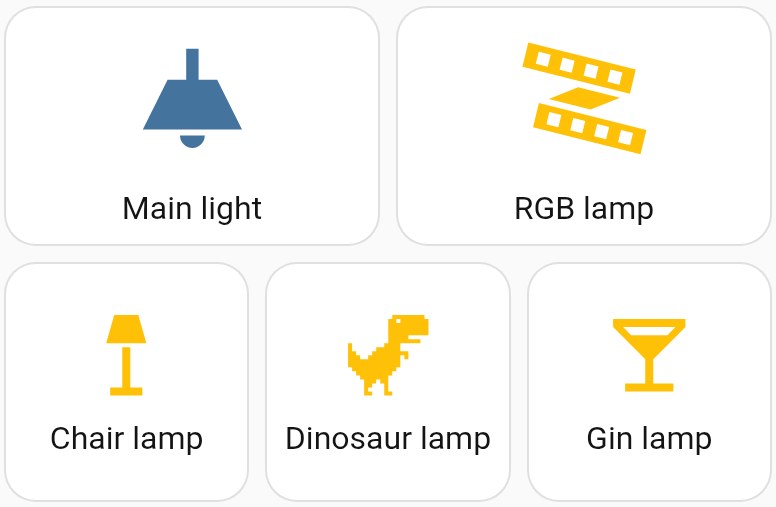 The RGB lamp finally matching the others
WLED’s interface is from WLED, and card-mod is by Thomas Lovén.