Bringing my RGB lamp back with WLED
How I swapped my old Super Simple RGB WiFi Lamp's abandoned firmware for WLED over Wi-Fi, without writing a line of Arduino code.
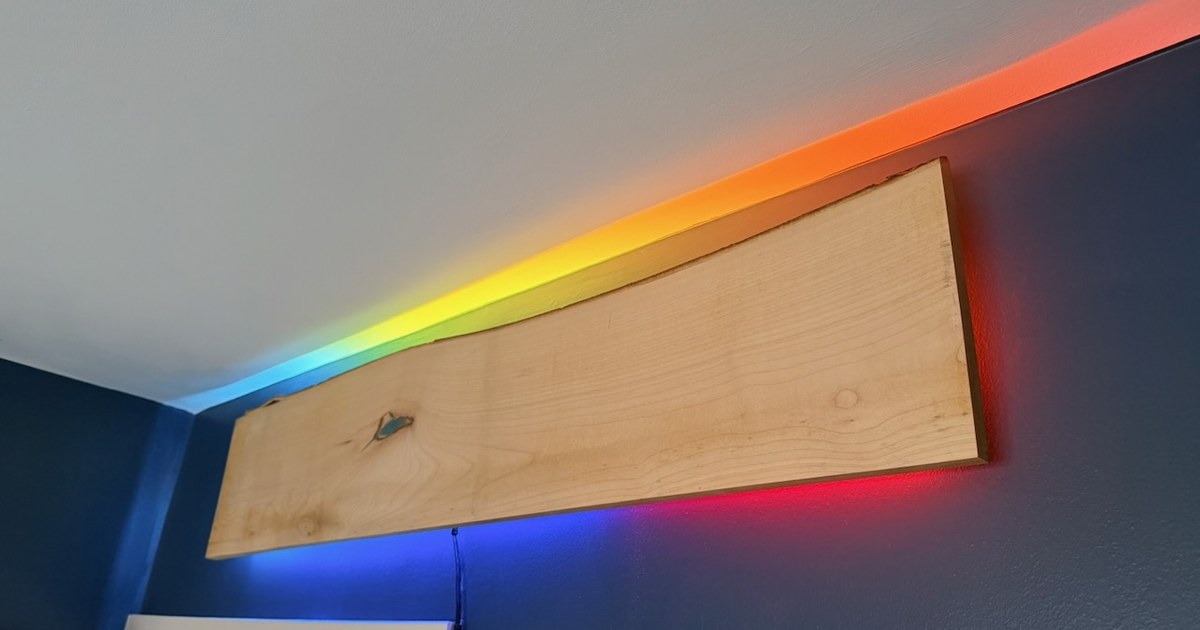
Years ago I built a Super Simple RGB WiFi Lamp from thebigpotatoe’s Instructables tutorial: a strip of WS2812B LEDs around a wooden frame, driven by a NodeMCU. It came with a handful of modes, and for pretty much its whole life it’s sat in Rainbow mode, slowly cycling away in my office.
What it never had was a way to talk to Home Assistant. Its firmware hasn’t been touched since 2020, and the only way to control it is a WebSocket on port 81 that Home Assistant has no idea what to do with.
I’ll be honest, the thought of digging out the Arduino IDE, finding 2020-era libraries and remembering how any of it worked put me off for a long time. It turns out I didn’t need to do any of that. With Claude doing the research (and most of the typing), the lamp now runs WLED, shows up in Home Assistant by itself, and has its own web page and phone app, with nearly 200 effects to pick from. Rainbow is still the default, of course. So let’s get stuck in.
Why WLED
Before changing anything, we had a look at what the old firmware was doing, and found a few things I wasn’t thrilled about:
- Every message rewrites the settings to flash, which would slowly wear it out if an automation started changing it.
- It sends your Wi-Fi password back, in plain text, to anything that connects to the WebSocket.
- Its firmware upload page,
/update, has no password, so anyone on the network can flash it.
Patching all that, and adding MQTT on top, would mean reviving the old toolchain and writing a lot of code, only to end up with a worse version of WLED. WLED is built for exactly this hardware (an ESP8266 driving WS281x LEDs), Home Assistant has a built-in integration for it, and it comes with its own web UI and apps. Easy decision.
What you need
- A lamp built from the tutorial (or anything similar): an ESP8266 board driving WS2812B LEDs, already on your Wi-Fi.
- A computer on the same network, and a phone.
- Ideally, the board’s USB cable within reach, just in case (see if it goes wrong).
You don’t need the Arduino IDE, the original sketch, or any code. I’d long since lost my sketch, and it didn’t matter.
1. Note your current settings
Open the lamp’s page (http://super-simple-rgb-wifi-lamp.local/ if you kept the default name) and note the settings of the mode you actually use. Mine was Rainbow: hue 0, speed 10 (one full turn every 10 seconds) and brightness 100 out of 255.
2. Download WLED
Grab WLED_<version>_ESP8266.bin from the latest WLED release (16.0.1 when I did this). Don’t worry about the long list of other files: they’re for different boards.
3. Upload it through the old firmware
This is the bit I was most nervous about, and it’s the easiest. The old firmware’s upload page is a plain web form: open http://super-simple-rgb-wifi-lamp.local/update, choose the .bin, and press Update. After a few seconds it says “Update Success! Rebooting…”, and that’s it.
The tutorial sets the flash layout to “4M (1M SPIFFS)”, which leaves about 3MB for an upload, so WLED’s roughly 900KB fits comfortably. If yours was set differently and there isn’t room, the board refuses the file before it erases anything, so nothing breaks.
4. Put it on your Wi-Fi
WLED doesn’t know your Wi-Fi yet, so it starts its own network instead:
- On your phone, join
WLED-AP(the password iswled1234). - A WLED page should pop up. If it doesn’t, browse to
4.3.2.1. - Tap WiFi Settings, enter your network’s name and password, and set mDNS address to something short. I went with
rgb-lamp, which makes the lamphttp://rgb-lamp.local/. - Tap Save & Connect.
I forgot the mDNS name the first time, and it’s no problem: it’s under Config → WiFi Setup once the lamp’s back on your network.
5. Tell WLED about the LEDs
Out of the box, WLED drives 30 LEDs on a different pin, so the lamp will look dark or wrong. Under Config → LED Preferences, set:
- Data GPIO: 5 (that’s the pin marked D1, which the tutorial uses)
- Length: your LED count. The tutorial’s sketch says 66, but mine has 68, so count yours.
- LED type: WS281x
- Color order: GRB
Save, then set the lamp to solid red as a check. If it’s green, the colour order is wrong. If some LEDs at the end stay dark, the count is too low. If nothing lights at all, the pin is wrong. All three are settings, not reflashing.
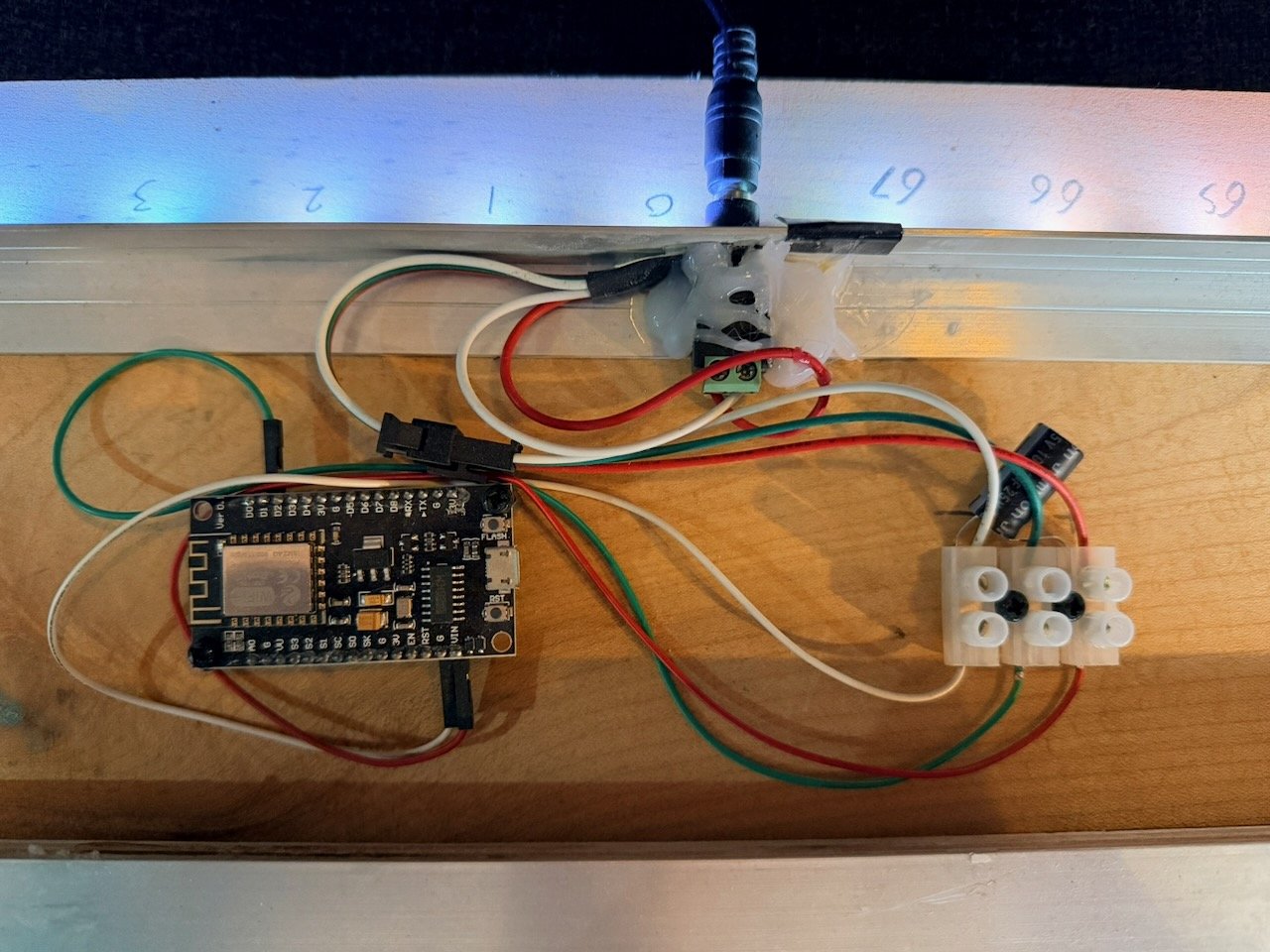 The inside of my lamp: the NodeMCU, the terminal block and the power jack, exactly as the tutorial wires it. The numbers on the channel run 0 to 67, which is how I know I’ve got 68 LEDs
6. Bring back Rainbow
WLED has two effects that sound right, and only one of them is. Colorloop turns the whole strip one colour at a time. Rainbow spreads a rainbow along the strip and turns it, which is what the old mode did. To match mine:
- Effect: Rainbow
- Intensity (the size of the rainbow): 128, which fits exactly one rainbow around the strip
- Speed: 20, which works out at about 10 seconds a turn
- Brightness: 100
Save that as a preset (+ Preset in the Presets column), then make it the power-on default: Config → LED Preferences → Apply preset at boot. Now a power cut brings back Rainbow, just like before.
The lamp in a dark room, a rainbow sliding slowly along the LEDs above and below it
7. Check the power limit
WLED has a current limiter, which defaults to 850mA. With 68 LEDs at my old brightness, it estimated the lamp was drawing 829mA, so it was right on the edge of dimming my Rainbow without telling me.
The right number depends on your power supply and wiring. Mine’s a 5V 8A adapter, about double what 68 LEDs can draw even at full white (around 4A), but the wires inside are thin LED-strip pigtail, around 22 AWG. So I set the limit to 3,000mA under Config → LED Preferences. Rainbow at full brightness only needs around 1.5A, so it never gets near it, and the limiter only trims the very top off full white.
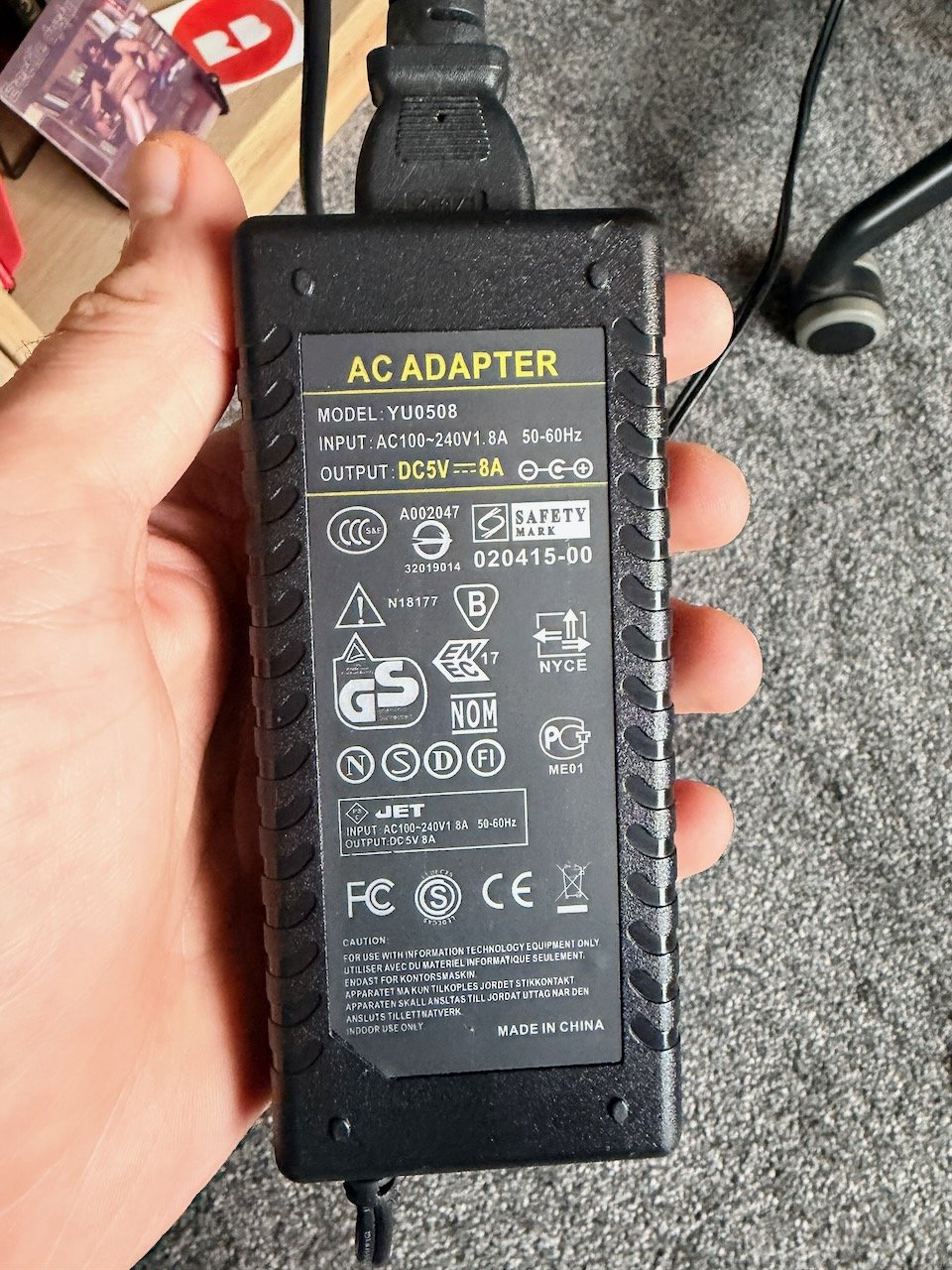 The lamp’s power supply: 5V at up to 8A
8. Add it to Home Assistant
This took no effort at all: Home Assistant had spotted the lamp before I’d even looked. It was waiting under Settings → Devices & services → Discovered, and one click later I had light.rgb_lamp, with on/off, brightness, colour and the full effect list, plus a preset picker, speed and intensity sliders, and an update entity, so new WLED releases show up alongside everything else.
I’ve also exposed it to Assist, so “turn on the RGB lamp” works by voice, and given it a button on my Office dashboard. Holding that button opens WLED’s own page inside Home Assistant, but that’s a story for the next post.
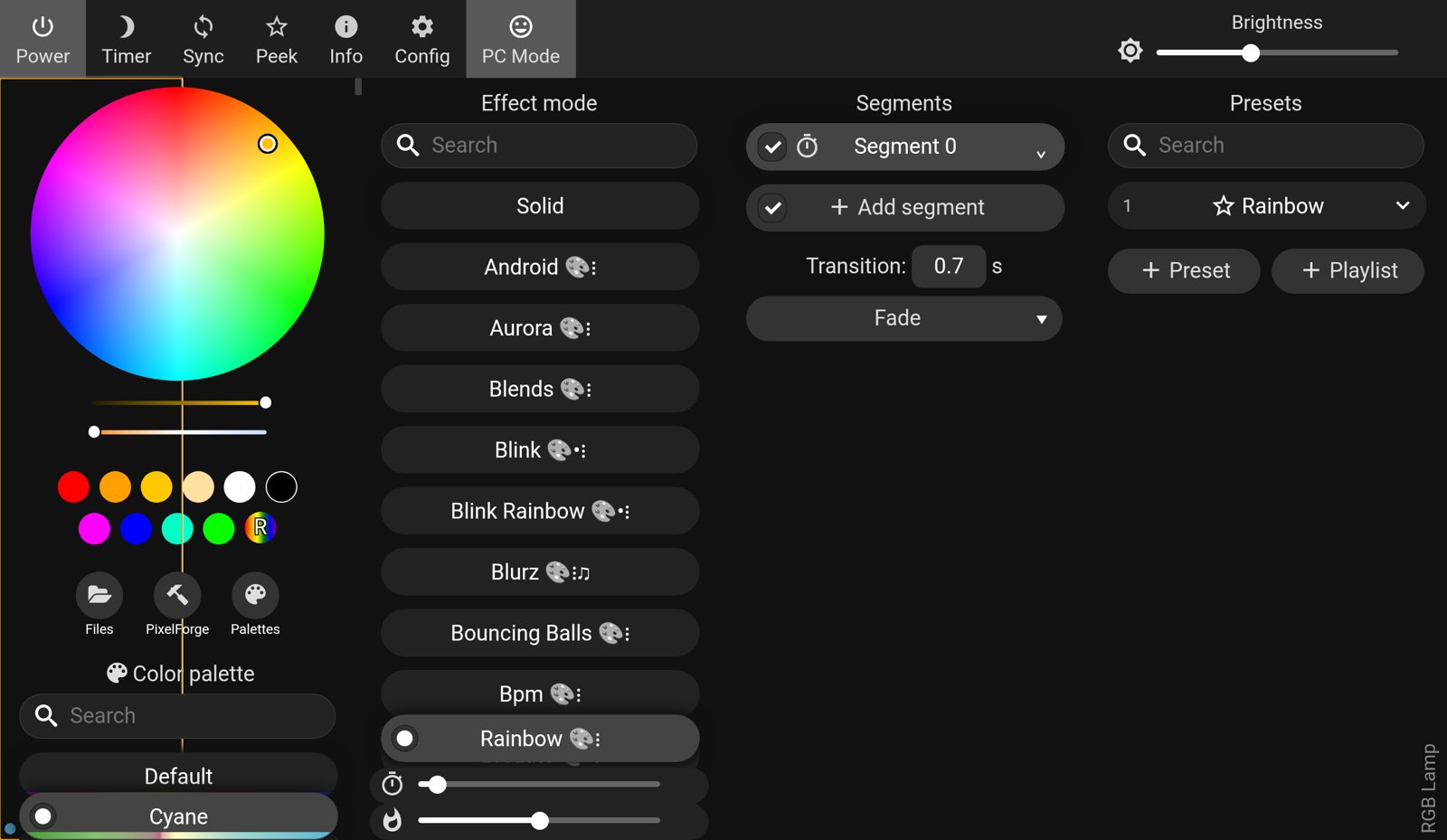 WLED’s own page, with every effect, palette and preset
If it goes wrong
If the lamp doesn’t come back after the upload, it needs opening up, but it still doesn’t need any code. Plug the NodeMCU into a computer with its micro-USB cable, open install.wled.me in Chrome or Edge, and it flashes WLED from the browser. Then carry on from step 4.
The lamp is thebigpotatoe’s Super Simple RGB WiFi Lamp, and its firmware is now WLED.