Floor796 kiosk: the bug's fixed, and Home Assistant runs the screen
Floor796 fixed the Wandering bug, so the watchdog can go, and Home Assistant now dims and stops my Raspberry Pi kiosk when no one's watching.
When I wrote up running Floor796 in kiosk mode on a Raspberry Pi last week, I finished the section on the Wandering bug by saying I’d emailed the author about it, and left it at that. I’ll be honest, an email out of the blue from a stranger isn’t always top of anyone’s list - so imagine my surprise when a reply landed in my inbox a few days later saying it was fixed.
That meant the watchdog could go, which freed me up to tackle the thing that had been bugging me ever since: the screen was lit up and wandering away all day, whether anyone was there to see it or not. And seeing as I promised to automate as much of my life as possible with Home Assistant, this seemed like the perfect place to start.
Everything from both posts, updated, is now in a GitHub repo: LimeBlast/raspberry-796. As before, Claude did a lot of the digging (and, as you’ll see, a little of the breaking). So let’s get stuck in.
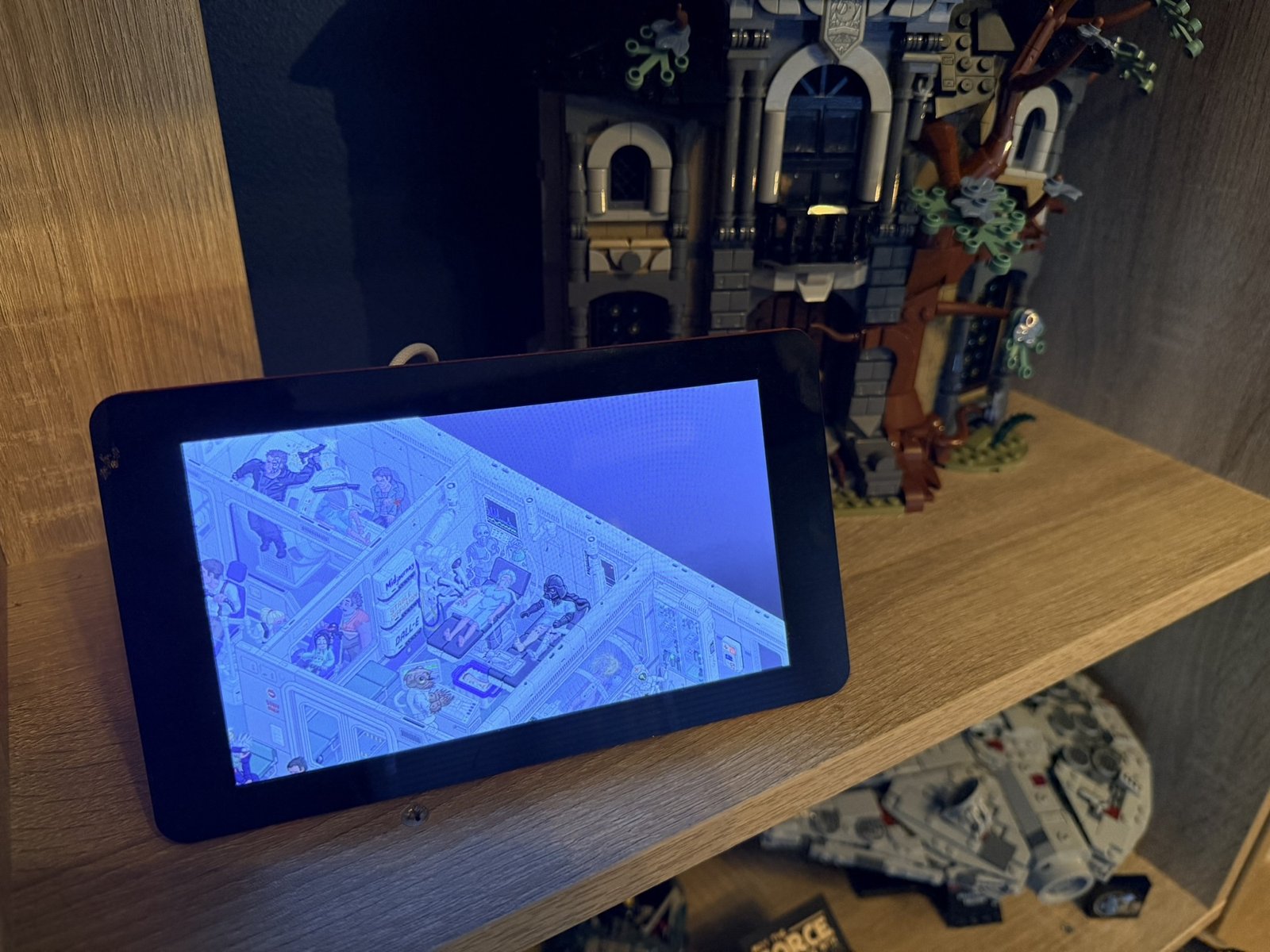 Oni on its shelf, keeping the LEGO company
The bug’s fixed
A quick recap - Wandering moves the camera between random points on the edge of a scene. When the next point it picked was the spot the camera was already on, the distance to move was 0, each step divided by that distance, and the camera’s position became NaN. Nothing was drawn from then on.
The live site now checks for exactly that case. When the distance is 0, it waits a second and moves on to the next point instead of dividing by it:
1
2
3
0 === this._moveDelta
  ? new Promise(t => { console.log("same wandering point, sleep a while"); setTimeout(() => t(true), 1000) })
  : /* the normal move, which divides by _moveDelta */
Floor796 tells browsers not to cache its main page, so the kiosk picks up the fix the next time Chromium starts. You don’t have to do anything.
A huge thank you to Floor796’s author, not just for the quick turnaround, but for taking the time to read an email from a random bloke with a Raspberry Pi in the first place.
Remove the watchdog
If you followed the first post, the watchdog has nothing left to do:
Delete these two lines from
~/.config/labwc/autostart:1 2
# Restart the kiosk if the screen goes blank (sleep 60 && ~/kiosk-watchdog.sh) &
Stop it and delete it, along with its last screenshot:
1
2
pkill -f "^/bin/sh $HOME/kiosk-watchdog.sh"
rm ~/kiosk-watchdog.sh /tmp/kiosk-check.png
grimwas only there for the watchdog, so it can go too:1
sudo apt remove -y grim
Keep the 6-hourly restart in your crontab. It clears any slow memory build-up, which has nothing to do with the bug.
Home Assistant runs the screen
The cron schedule from the first post (full brightness by day, dim in the evening, off at night) did the job, but it had two problems:
- It only knew the time. Whether I was home or not, the screen was lit, and Chromium was busy rendering away to an empty room.
- Only the backlight went off. Chromium kept drawing Floor796 all night, and on a Pi 4 that’s where most of the power goes - under that load it draws roughly 4 to 5W, against 2.5 to 3W idle. The backlight is only about 1W on top.
Home Assistant already knows when the sun rises and sets, and whether I’m home, so it now makes the decisions and the Pi just does what it’s told:
| When | Chromium | Screen |
|---|---|---|
| I’m out | stopped | off |
| 22:00 to 06:00 | stopped | off |
| 06:00 to sunrise | running | dim |
| Sunrise to sunset | running | full |
| Sunset to 22:00 | running | dim |
When Home Assistant brings the kiosk back, it starts Chromium 15 seconds before turning the screen on, so the screen goes straight from dark to Floor796 without showing the desktop or a loading page.
“I’m out” really means “my phone’s out”. Lucy doesn’t have a tracker yet, so if she’s home on her own, she gets a dark screen (sorry, Lucy).
The Pi talks to Home Assistant over MQTT, a lightweight messaging system lots of smart home kit uses. A small script on the Pi announces itself through MQTT discovery, and Home Assistant adds it as a device with two entities:
light.<hostname>_screen: the backlight, with brightness. Off also turns the display output off.switch.<hostname>_kiosk: Chromium, on or off.
Mine’s called oni, so they’re light.oni_screen and switch.oni_kiosk.
What you need
- Home Assistant with an MQTT broker. I use the Mosquitto broker app (called an add-on in older versions), which is what most people use.
- Someone tracked by Home Assistant, as a person entity (mine’s my phone, through the companion app).
1. Give the Pi a broker login
In Home Assistant, open the Mosquitto broker app’s Configuration tab (under Settings → Apps, or Add-ons in older versions), and add a login under logins:
1
2
- username: oni
  password: <a long random password>
Save, then restart the app.
2. Install the MQTT clients on the Pi
1
sudo apt install -y mosquitto-clients
mosquitto_pub and mosquitto_sub read their default options from a file each, so the broker address and login live there instead of in the script, out of sight of ps. Put in your Home Assistant’s IP address and the login from step 1:
1
2
3
umask 077
printf -- '-h <Home Assistant IP>\n-u oni\n-P <password>\n' > ~/.config/mosquitto_pub
cp ~/.config/mosquitto_pub ~/.config/mosquitto_sub
Test it. This should print homeassistant/status online within a couple of seconds:
1
mosquitto_sub -t homeassistant/status -C 1 -W 5 -v
3. Let the kiosk be stopped on purpose
When Home Assistant stops Chromium, the 6-hourly cron restart mustn’t start it again. Home Assistant’s “off” creates a file, ~/kiosk-off, and kiosk.sh now does nothing while it exists. Add this line to ~/kiosk.sh, straight after the comment at the top:
1
[ -e $HOME/kiosk-off ] && exit 0  # stopped by Home Assistant (kiosk-mqtt.sh)
4. Create the bridge script
Create ~/kiosk-mqtt.sh:
1
2
3
4
5
6
7
8
9
10
11
12
13
14
15
16
17
18
19
20
21
22
23
24
25
26
27
28
29
30
31
32
33
34
35
36
37
38
39
40
41
42
43
44
45
46
47
48
49
50
#!/bin/sh
# Bridges the screen and the kiosk to Home Assistant over MQTT, as light.<hostname>_screen and
# switch.<hostname>_kiosk (MQTT discovery). HA runs the schedule. Broker and login are in
# ~/.config/mosquitto_pub and mosquitto_sub. Runs as the systemd user service kiosk-mqtt.
export WAYLAND_DISPLAY=wayland-0 XDG_RUNTIME_DIR=/run/user/$(id -u)
BL=/sys/class/backlight/10-0045/brightness
OFF=$HOME/kiosk-off  # while this exists, kiosk.sh (and so cron) leaves Chromium stopped
N=$(hostname)        # names the device, its entities and its MQTT topics

pub() { mosquitto_pub -r -t "$1" -m "$2"; }

screen() {  # $1 = brightness 1-255, or 0 for off (backlight and display output)
  if [ "$1" -gt 0 ]; then
    wlr-randr --output DSI-1 --on && echo "$1" > $BL && pub $N/screen/brightness "$1" && pub $N/screen/state ON
  else
    echo 0 > $BL; wlr-randr --output DSI-1 --off; pub $N/screen/state OFF
  fi
}

kiosk() {  # $1 = ON or OFF
  if [ "$1" = ON ]; then
    rm -f $OFF
    # its own unit, or systemd stops Chromium whenever this service restarts
    pgrep -f /usr/lib/chromium/chromium >/dev/null || systemd-run --user --collect --quiet $HOME/kiosk.sh
  else
    touch $OFF; pkill -f /usr/lib/chromium/chromium
  fi
  pub $N/kiosk/state "$1"
}

dev="\"device\":{\"identifiers\":[\"$N\"],\"name\":\"$N\",\"model\":\"Raspberry Pi 4 Model B\",\"manufacturer\":\"Raspberry Pi\"},\"availability_topic\":\"$N/status\""
pub homeassistant/light/$N/screen/config "{\"name\":\"Screen\",\"unique_id\":\"${N}_screen\",\"icon\":\"mdi:monitor\",\"command_topic\":\"$N/screen/set\",\"state_topic\":\"$N/screen/state\",\"brightness_command_topic\":\"$N/screen/brightness/set\",\"brightness_state_topic\":\"$N/screen/brightness\",$dev}"
pub homeassistant/switch/$N/kiosk/config "{\"name\":\"Kiosk\",\"unique_id\":\"${N}_kiosk\",\"icon\":\"mdi:web\",\"command_topic\":\"$N/kiosk/set\",\"state_topic\":\"$N/kiosk/state\",$dev}"

last=$(cat $BL); [ "$last" -gt 0 ] || last=255  # brightness to use for a plain "on"
if [ "$(cat $BL)" -gt 0 ]; then pub $N/screen/brightness "$last"; pub $N/screen/state ON; else pub $N/screen/state OFF; fi
if [ -e $OFF ]; then pub $N/kiosk/state OFF; else pub $N/kiosk/state ON; fi
# online once mosquitto_sub below has subscribed, or HA's first commands are lost
# A fixed 2 s wait is enough on a LAN. The service's ExecStopPost and the will publish offline.
(sleep 2; pub $N/status online) &

mosquitto_sub -v -t $N/screen/set -t $N/screen/brightness/set -t $N/kiosk/set \
  --will-topic $N/status --will-payload offline --will-retain |
while read -r topic msg; do
  case $topic in
    $N/screen/set) if [ "$msg" = ON ]; then screen "$last"; else screen 0; fi ;;
    $N/screen/brightness/set) [ "$msg" -gt 0 ] && last=$msg; screen "$msg" ;;
    $N/kiosk/set) kiosk "$msg" ;;
  esac
done
Make it executable with chmod +x ~/kiosk-mqtt.sh.
What each part does:
N=$(hostname): Names everything after the Pi, so two kiosks on the same broker don’t trip over each other.screen: Sets the backlight (the same file the oldbacklight.shwrote to). For off, it also turns off the display output withwlr-randr, so the panel is completely dark rather than a lit panel with the backlight off.kiosk: Starts Chromium throughkiosk.sh, or stops it and creates~/kiosk-off.systemd-runstarts it as a separate unit (more on that below).- The two
homeassistant/.../configmessages: MQTT discovery. Home Assistant reads these and creates the device and its entities, with nothing to configure on its side.-rmakes every message retained, so Home Assistant finds them again after it restarts. (sleep 2; pub $N/status online) &: Tells Home Assistant the Pi is available, but only oncemosquitto_subis listening (more on that below too).--will-topic: If the Pi drops off the network, the broker marks it as offline for it.- The
while readloop: Turns each command from Home Assistant into ascreenorkioskcall.
Two things that didn’t go to plan
It wouldn’t be one of my projects if everything worked first time, and two of those lines are there because of it.
The first showed up while testing reconnects. I’d dim the screen, restart the script, and wait for Home Assistant to put it back to full brightness - and nothing happened. It turns out the script was telling Home Assistant it was online, and Home Assistant was sending its command straight away, before mosquitto_sub had actually started listening. The command went nowhere. Waiting a couple of seconds before saying “online” fixed it.
The second was sneakier. Everything had passed its tests, and I’d moved on to writing this post, when I glanced over and saw the desktop staring back at me instead of Floor796. During testing, Home Assistant had stopped and restarted Chromium, which meant this script had started it - and as far as systemd was concerned, that made Chromium part of the script’s service. So when I restarted the service to test something else, systemd helpfully tidied Chromium away with it. Starting Chromium with systemd-run gives it a unit of its own, so it survives whatever happens to the script.
5. Run it as a service
systemd can run it in the background at login and restart it if it ever stops. Create ~/.config/systemd/user/kiosk-mqtt.service:
1
2
3
4
5
6
7
8
9
10
11
[Unit]
Description=Floor796 kiosk screen and Chromium for Home Assistant (MQTT)

[Service]
ExecStart=%h/kiosk-mqtt.sh
ExecStopPost=/usr/bin/mosquitto_pub -r -t %H/status -m offline
Restart=always
RestartSec=10

[Install]
WantedBy=default.target
%h is your home folder and %H the hostname. ExecStopPost matters: a clean shutdown doesn’t trigger the broker’s “offline” message, so without it Home Assistant wouldn’t notice the Pi had rebooted, and wouldn’t set the screen once it was back.
Start it, and have it start at every login:
1
2
systemctl --user daemon-reload
systemctl --user enable --now kiosk-mqtt
The Pi should appear in Home Assistant under Settings → Devices & services → MQTT. Try the screen’s brightness slider.
6. Retire the backlight schedule
Home Assistant runs the screen now, so remove the two backlight.sh lines with crontab -e, then delete the script:
1
rm ~/backlight.sh
7. Add the schedule to Home Assistant
Add this automation to automations.yaml, or paste it into a new automation’s YAML editor. Swap person.you for your own person entity, and oni in the entity IDs for your Pi’s hostname.
1
2
3
4
5
6
7
8
9
10
11
12
13
14
15
16
17
18
19
20
21
22
23
24
25
26
27
28
29
30
31
32
33
34
35
36
37
38
39
40
41
42
43
44
45
46
- id: floor796_kiosk_schedule
  alias: Floor796 kiosk schedule
  description: Runs the Floor796 kiosk only while you are home, 06:00 to 22:00,
    dimmed outside sunrise to sunset. Otherwise it stops Chromium and turns the screen off, to save
    power. Chromium starts before the screen comes on, so the page has loaded by then.
  triggers:
  - trigger: time
    at: '06:00:00'
  - trigger: time
    at: '22:00:00'
  - trigger: sun
    event: sunrise
  - trigger: sun
    event: sunset
  - trigger: state
    entity_id: person.you
    to: null
  - trigger: state
    entity_id: switch.oni_kiosk
    from: unavailable
  - trigger: homeassistant
    event: start
  variables:
    brightness: "{{ 0 if states('person.you') not in ['home', 'unknown', 'unavailable'] or not today_at('06:00') <= now() < today_at('22:00') else 255 if is_state('sun.sun', 'above_horizon') else 40 }}"
  actions:
  - if: '{{ brightness == 0 }}'
    then:
    - action: light.turn_off
      target:
        entity_id: light.oni_screen
    - action: switch.turn_off
      target:
        entity_id: switch.oni_kiosk
    else:
    - if: "{{ is_state('switch.oni_kiosk', 'off') }}"
      then:
      - action: switch.turn_on
        target:
          entity_id: switch.oni_kiosk
      - delay: 15
    - action: light.turn_on
      target:
        entity_id: light.oni_screen
      data:
        brightness: '{{ brightness }}'
  mode: restart
What each part does:
- The triggers: Every moment the answer might change (06:00, 22:00, sunrise, sunset, you leaving or arriving), plus Home Assistant starting and the Pi coming back online, so a reboot or power cut puts things right straight away.
to: nullmeans only real changes count, not every GPS update from your phone. brightness: Works out what the screen should be right now: 0 (off) if you’re anywhere but home or it’s night, 255 if the sun’s up, otherwise 40. Change the times or the dim level here.unknownandunavailablecount as home, so the kiosk doesn’t switch off just because your phone hasn’t checked in since Home Assistant restarted.mode: restart: If you walk out the door during the 15-second wait, the automation starts again and turns everything off, rather than finishing turning it on.
The dim period moves a lot through the year. In summer the sun’s up before 06:00, so the screen goes straight to full brightness and only dims for a little while before 22:00. In winter it’s dim from about 16:00.
What’s next?
For now, Oni just quietly gets on with it - wandering when I’m around to see it, and dark when I’m not. Next on the list is giving Lucy a tracker, so she stops getting the dark screen, and maybe finally setting up the touchscreen properly so visitors can explore the station by hand.
This was also my first proper go at getting something of my own talking to Home Assistant, rather than just adding things that already work with it, and it won’t be the last. Watch this space.
Troubleshooting
Click a problem to see what to check and how to fix it.
The Pi doesn't appear in Home Assistant
Check: systemctl --user status kiosk-mqtt, and the mosquitto_sub test from step 2.
Fix: If the test fails, check the address and login in ~/.config/mosquitto_pub and mosquitto_sub, and that you restarted the Mosquitto app after adding the login.
The screen doesn't change after a reboot
Check: Does the automation’s trace (in Home Assistant, the automation’s ⋮ → Traces) show it running when the Pi came back?
Fix: Check that ExecStopPost is in the service, then run systemctl --user daemon-reload.
Chromium keeps coming back when it should be off
Check: ls ~/kiosk-off
Fix: Make sure the kiosk-off line is at the top of kiosk.sh, before pkill.
An SSH session drops while testing
As in the first post: pkill -f and pgrep -f match any command line containing /usr/lib/chromium/chromium, including your own SSH command if you typed the path in it. pgrep -f will count itself too.
Undoing it all
Run systemctl --user disable --now kiosk-mqtt, then delete ~/kiosk-mqtt.sh, ~/.config/systemd/user/kiosk-mqtt.service, ~/.config/mosquitto_pub, ~/.config/mosquitto_sub and ~/kiosk-off, and the kiosk-off line from kiosk.sh. In Home Assistant, delete the automation, then the device (Settings → Devices & services → MQTT). Its discovery messages are retained, so clear them too, or it comes back after a restart:
1
for t in light/oni/screen switch/oni/kiosk; do mosquitto_pub -r -t homeassistant/$t/config -n; done
Without Home Assistant, the screen stays on at full brightness. The cron schedule from the first post still works if you’d rather have that back.
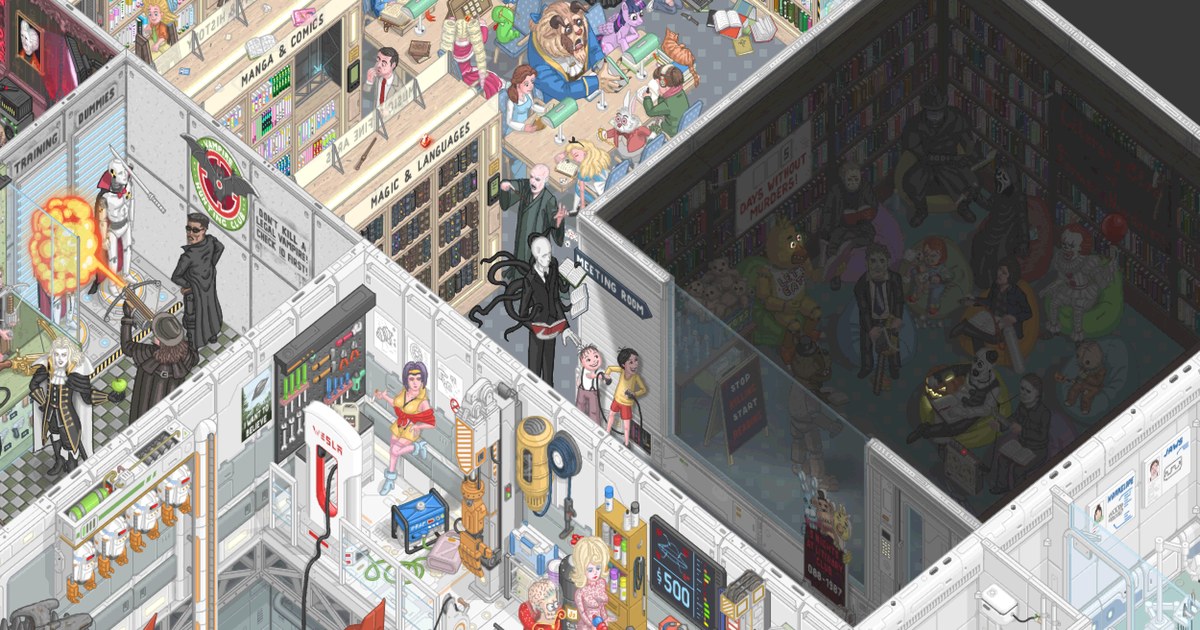
The header image is a screenshot of part of Floor796, and the artwork on the kiosk’s screen is Floor796 too.